Introduction
Earlier in April 2026, Google released Gemma 4, the latest family of open multimodal models, and momentum has been building since then. Gemma 4 comes in four sizes: Effective 2B (E2B), Effective 4B (E4B), 26B Mixture of Experts (MoE), and 31B Dense. Native multimodality in the Gemma family first appeared last year with Gemma 3.
What makes Gemma 4 stand out is that it goes beyond standard text-to-text chat, with the ability to handle complex reasoning and agentic workflows. In practice, the real challenge lies in serving these models efficiently. This leads to a natural question: how do LLMs like Gemini deliver sub-second responses? A large part of the answer lies in TPUs.
Tensor Processing Units (TPUs)
Google uses Tensor Processing Units (TPUs) as hardware accelerators for both training and serving models. What puts Google ahead in the AI race is its early investment in designing custom chips, purpose-built for large-scale machine learning workloads.
In practice, these accelerators can deliver significantly higher performance than general-purpose GPUs for specific model architectures and serving scenarios.
In this blog, I go beyond the usual VLM inference on GPUs and show how to create a TPU instance on Google Cloud to serve Gemma 4 using vLLM.
What is vLLM?
vLLM is an open source high performance inference engine for large language models that maximizes hardware utilization and throughput using techniques like PagedAttention and continuous batching.
Now that we know what TPUs and vLLM are, let’s get started.
Prerequisites
- Billing account linked to a GCP project
- Reserved TPU quota
- Access to Gemma family of models on Hugging Face
Since TPUs are expensive and limited in availability, you may need to request quota in advance or use queued resources.
Step 1: Create a TPU instance
Open the Google Cloud Console and activate Cloud Shell. TPUs can be either reserved or allocated using queued resources, meaning they are assigned when capacity becomes available.
In Cloud Shell, run the following commands to set up the required variables:
export PROJECT=YOUR_GCP_PROJECT_NAME
export HF_TOKEN=YOUR_HF_TOKEN
export ZONE=southamerica-east1-c
export TPU_NAME=gemma4-tpu-vllm
Cloud TPUs are available in different versions. You can explore the available generations, including the 8th generation TPUs such as TPU 8t (training) and TPU 8i (inference), announced at Google Cloud Next 2026.
In this tutorial, I will deploy Gemma 4 on TPU 6e (Trillium).
gcloud alpha compute tpus queued-resources create gemma4-tpu-vllm
  --zone=southamerica-east1-c
  --accelerator-type=v6e-8
  --runtime-version=v2-alpha-tpuv6e
  --node-id=gemma4-tpu-vllm
  --provisioning-model=flex-start
  --max-run-duration=4h
  --valid-until-duration=4h
  --labels=purpose=flex-start
The above command creates a queued TPU resource using flex start provisioning, which allows you to specify the duration for which it remains active.
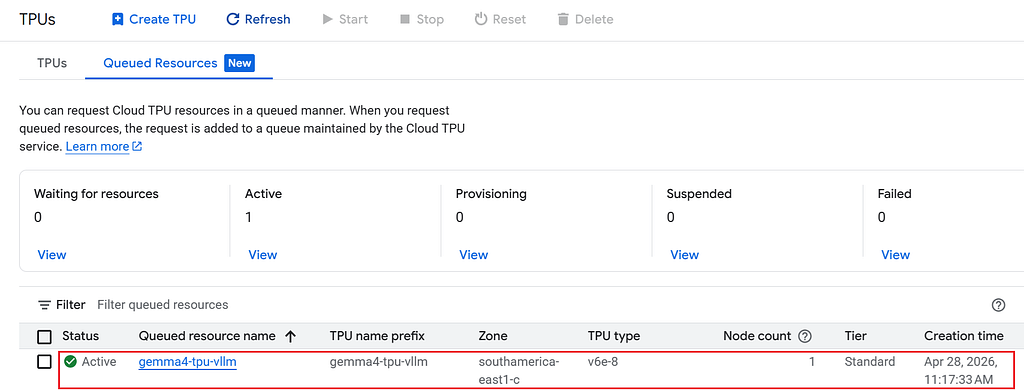
To check the status of your request, run the below
gcloud alpha compute tpus queued-resources describe
  gemma4-tpu-vllm
  --zone=southamerica-east1-c
It may take some time to spin up the TPU instance depending upon the availability.
Once provisioned, you can see the status is changed to ACTIVE. Alternatively, you can also check it on Cloud Console.
Step 2: Configure Firewall
Run the below command to configure firewall rules so that the vLLM Docker image allows incoming traffic.
gcloud compute firewall-rules create allow-vllm-8000
  --allow tcp:8000
  --target-tags=vllm
Step 3: Connect to TPU instance using SSH
In the Cloud Shell, run the below command to SSH into the TPU instance.
gcloud compute tpus tpu-vm ssh gemma4-tpu-vllm
  --zone=southamerica-east1-c
Step 4: Download Gemma 4 Docker image
Now, once SSHed into the TPU instance, run the below command to download the Gemma 4 Docker image.
sudo docker run -it --rm --name gemma4-vllm
  --privileged
  --network host
  --shm-size 16g
  -v /dev/shm:/dev/shm
  -e HF_TOKEN=$HF_TOKEN
  vllm/vllm-tpu:gemma4
  python -m vllm.entrypoints.openai.api_server
    --model google/gemma-4-26B-A4B-it
    --tensor-parallel-size 8
    --max-model-len 8192
    --limit-mm-per-prompt '{"image": 1, "audio": 0}'
    --disable_chunked_mm_input
    --enable-auto-tool-choice
    --tool-call-parser gemma4
    --host 0.0.0.0
    --port 8000
    --allowed-local-media-path /home/nitin_tiwari
In this example, we will deploy the gemma-4-26B-A4B-it model. It is a 26B parameter instruction-tuned model with 4B active parameters.
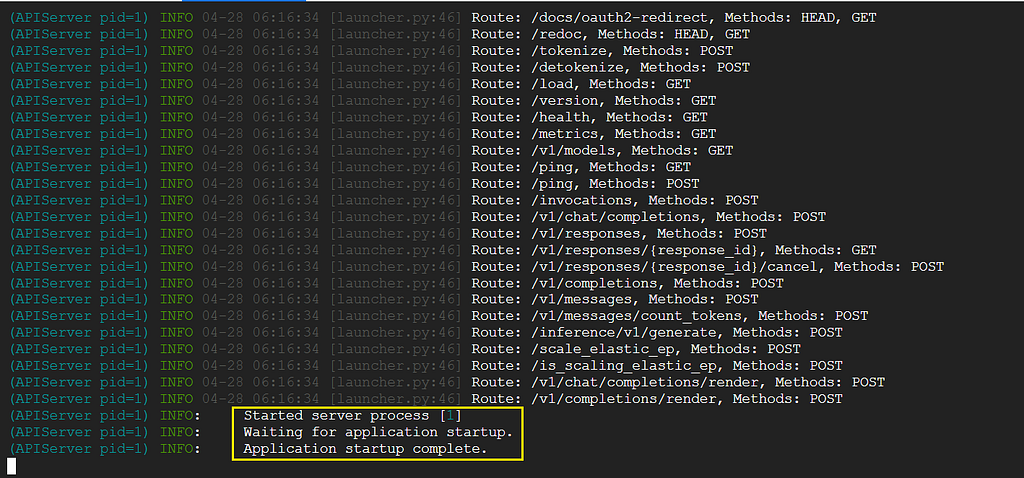
This will take a few minutes to set up the Docker image, as it loads the model weights and initializes the vLLM inference engine.
Once done, you should see the below message in the terminal.
Step 5: Start Inference
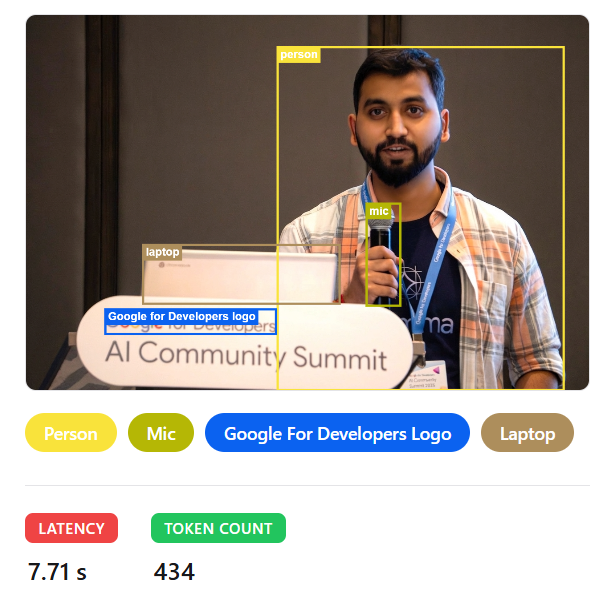
We are now ready to start inference on the deployed model. I have built a simple frontend that accepts text and image inputs, forwards them to the TPU instance hosting Gemma 4, and returns the generated response.
Clone the repository to your local machine:
git clone https://github.com/NSTiwari/Gemma-4-on-TPU.git
cd Gemma-4-on-TPU
Once completed, open the index.html file and update line 583 by replacing YOUR_EXTERNAL_IP with the external IP address of your TPU instance:
const res = await fetch("http://YOUR_EXTERNAL_IP:8000/v1/chat/completions"
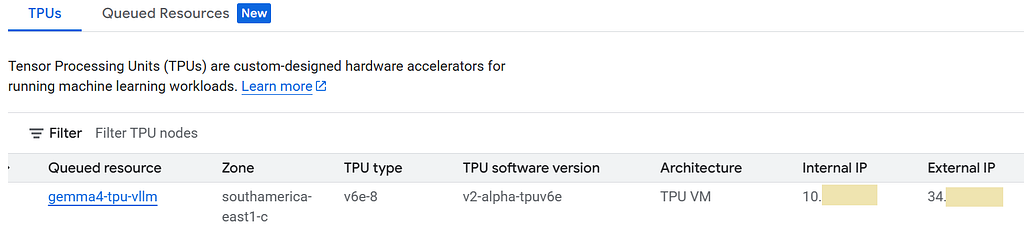
You can find the external IP address in the list of TPUs in the Google Cloud Console.
Finally, start the frontend server using the following command:
# Start frontend server.
py -m http.server

Open your web browser, and type localhost:8000 in the address bar to start the frontend application.
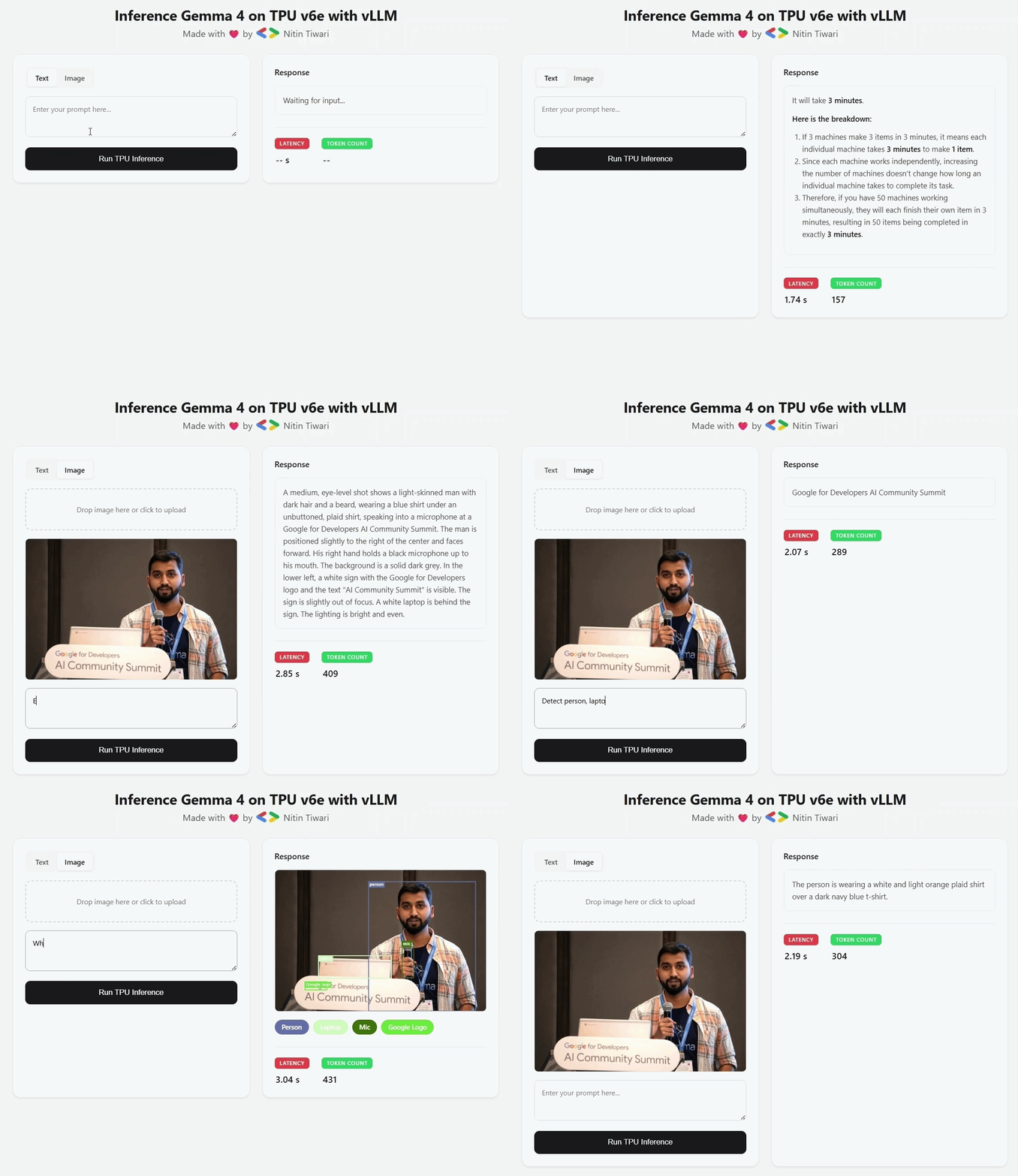
As you can see, Gemma 4 can perform a wide range of tasks, with response times of around 2–4 seconds when served on TPUs using vLLM.
Note: The first request may take longer due to cold start overhead.
So, that concludes this blog. I wanted this blog to cover the end-to-end aspects of how to create a TPU instance on Google Cloud, serve Gemma 4 using vLLM, build a frontend application, and send requests to the TPU instance for inference.
I believe it pretty much covered everything you need to get started and serve your own custom models on TPUs, where inference that would otherwise take several seconds to minutes on a typical GPU setup can be significantly faster.
I hope you learned how powerful TPUs can be when combined with vLLM to reduce inference latency. Stay tuned for more such tutorials.
Acknowledgment

This project was developed as part of Google’s AI Developer Programs TPU Sprint. I sincerely thank the Google AIDP Team for their generous support in providing GCP credits to help facilitate this project.
References & Resources

Serve and Inference Gemma 4 on TPU was originally published in Google Developer Experts on Medium, where people are continuing the conversation by highlighting and responding to this story.