By Angélica Oliveira and Aline Ayres
As Android Developers and Google Developer Experts (GDEs), we spend a great amount of our lives inside Android Studio. When Google introduced Gemini into the IDE, it represented a significant step forward in productivity.
However, many developers are still only using the default experience, which consists of a basic chat window and standard code completion.
If you just stick to the defaults, you are missing out on the true power of an AI-integrated IDE. Android Studio’s AI settings are surprisingly flexible, allowing you to connect local tools, switch the underlying model “brain” (to different AI models like Claude or OpenAI), and automate your most frequent instructions.
In this post, Aline Ayres and I will walk you through the advanced settings we use to tailor the AI experience specifically for Android development workflows.
Watch the Full Walkthrough
If you prefer a visual guide, we have recorded a complete walkthrough of these settings. You can watch it right here, or read on for the step-by-step breakdown.
https://medium.com/media/bbcde389b8f8bae793349de87ffa2376/href
Prefer to watch it in Portuguese? We got it! Watch it here!
1. The Essential Basics (Inline & Predictions)
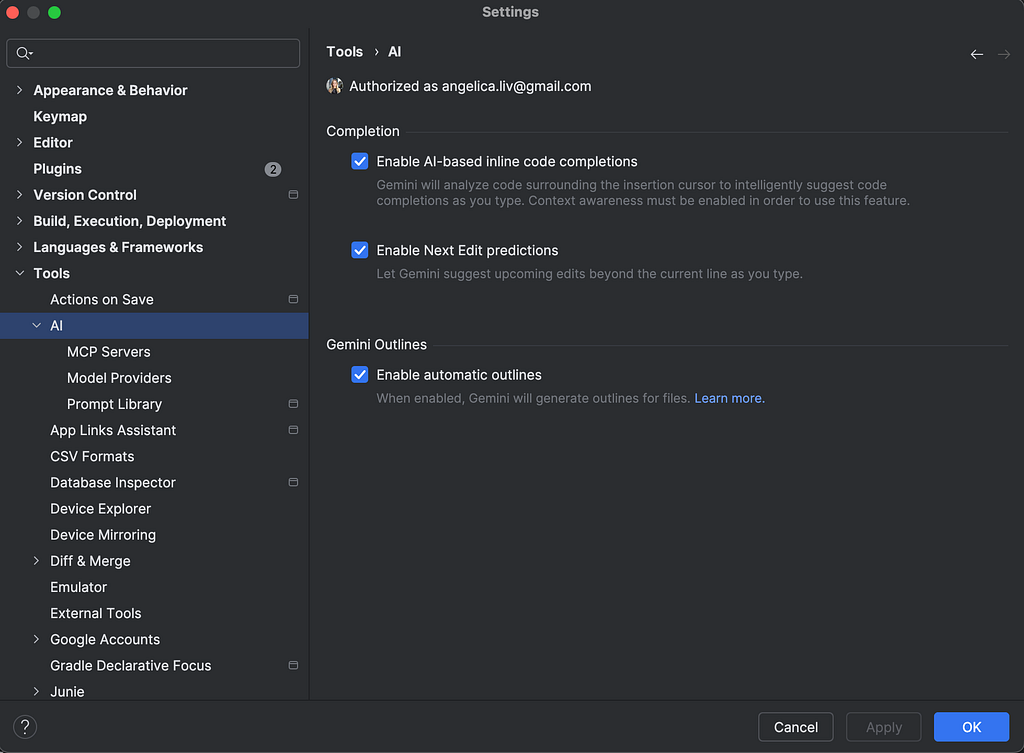
Before diving into the complex stuff, ensure your foundation is solid. There are two checkboxes in the settings that significantly speed up daily coding.
Navigate to Settings (or Preferences on macOS) > Tools > AI.
- Enable AI-based inline code completions: This is the code completion that appears as you type, smarter than the default one from AS.
- Enable Next Edit predictions: This is a newer feature where the AI attempts to predict the location of your next edit, not just the text. It’s a subtle change that saves many mouse clicks and keystrokes over time.
2. Connecting Your World with MCP Servers
This is where things get interesting. MCP stands for Model Context Protocol.
By default, the AI only knows what’s in your current project context. MCP allows you to connect the AI to external tools, local databases, or command-line interfaces, giving it a broader understanding of your specific development environment.
In the video, we showed how to add an MCP configuration using a simple JSON file. This tells Android Studio how to spin up a local server to bridge the gap between the IDE and your external tool.
To add one, go to the MCP Server tab in the AI settings and point it to your configuration file.
{
  "mcpServers": {
  "github": {
      "command": "docker",
      "args": [
        "run",
        "-i",
        "--rm",
        "-e",
        "GITHUB_PERSONAL_ACCESS_TOKEN",
        "ghcr.io/github/github-mcp-server"
      ],
      "env": {
        "GITHUB_PERSONAL_ACCESS_TOKEN": ""
      }
    }
  }
}
The example configuration above shows how to connect to the local file system using MCP.
3. Choosing Your “Brain”: Switching Model Providers
While Gemini is deeply integrated into Android Studio, sometimes you might want a second opinion, or perhaps you simply prefer the coding style of another model, like Anthropic’s Claude Sonnet 3.5 or OpenAI’s GPT-4o.
You are not locked in.
Under the Model Providers tab, you can configure each model option, giving you the possibility of add two kind of external models:
- Local Provider: You can easily plug in models that are running locally on your machine.
- Remote Models: As shown in our demo, you can configure a custom endpoint. This is perfect if your company uses a proxy or if you want to connect to a specific model like Claude via an API setup.
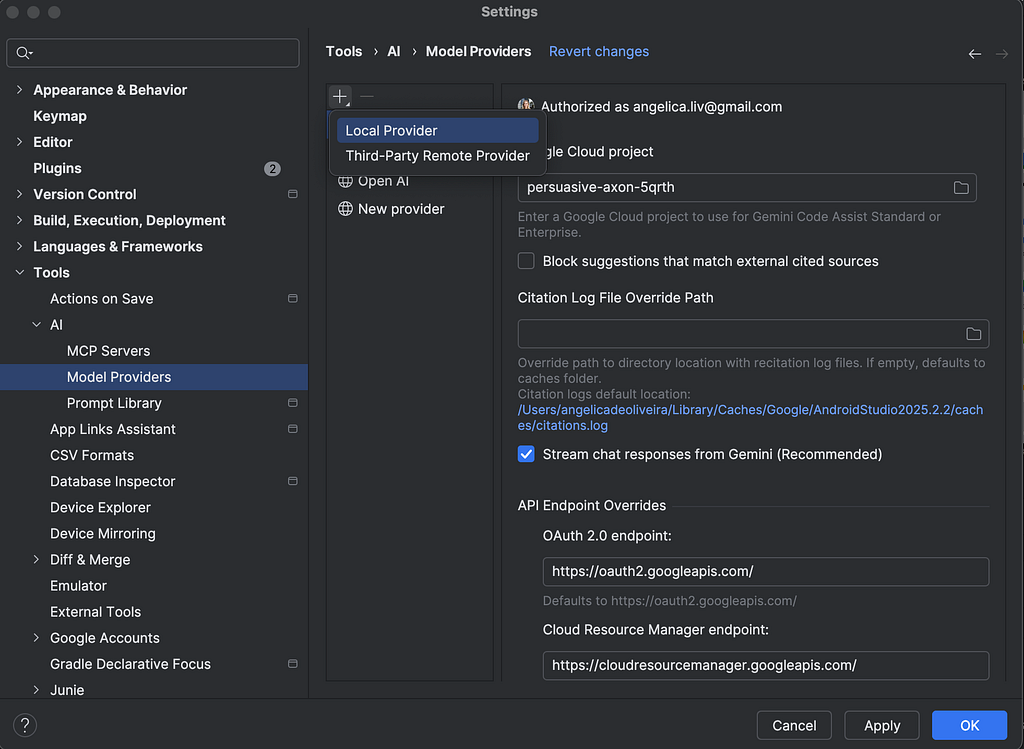
Once configured, a dropdown appears in your AI chat window, allowing you to switch the underlying intelligence of your IDE on the fly.
4. The Ultimate Time-Saver: The Prompt Library
If you find yourself repeatedly typing things like “Refactor this for better readability” or “Create a unit test for this function using Mockk”, you need the Prompt Library.
Stop typing the same context over and over.
In Settings > Tools > AI > Prompt Library, you can define custom commands. The real power here lies in using Variables.
Instead of pasting code into the chat, you use variables like $SELECTION or $CURRENT_FILE in your pre-defined prompt.
Example: A “Replace Dependency” Prompt
Let’s say you frequently need to migrate dependency injection code. You could create a prompt like this:
“Analyze the code in $SELECTION. Refactor it to remove the current dependency injection framework and replace it with Hilt standard annotations. Ensure the code remains functional.”
When you use this prompt in the chat, Android Studio automatically feeds the highlighted code into the $SELECTION variable. The AI gets perfect context every time without you having to explain what you are looking at.
Conclusion
Don’t settle for the default AI experience in Android Studio. By taking a few minutes to configure MCP servers, choosing the model provider that works best for you, and building a robust Prompt Library, you turn a generic chatbot into a highly specialized Android development assistant.
Give these settings a try and let us know in the comments how you are customizing your workflow!

Supercharging Android Studio AI was originally published in Google Developer Experts on Medium, where people are continuing the conversation by highlighting and responding to this story.