GemCinema: Recreate movie scenes with Gemini 3 Pro and Veo 3.1
Introduction
Since the release of Google’s Nano Banana Pro model, the developer community has explored a wide range of possibilities using its image generation and editing capabilities, enhanced by Gemini 3 Pro’s reasoning abilities. The model does more than generate or edit images; it evaluates the task before taking action.
I have often imagined myself acting in a movie and wondered what it would be like to be the hero or part of the story. In this post, I will share an interesting application that shows how the Gemini 3 Pro Image model aka Nano Banana Pro, combined with Veo 3.1, can help you place yourself into your favorite movies by recreating iconic scenes.
I could not wait to see where the idea would lead and how Project GemCinema would take shape. What follows is a look at how I built the project and recreated an iconic scene from The Godfather, placing myself directly into the film.
Fun fact: I have been a die-hard fan of this movie since the first time I watched it, and I cannot stop praising Marlon Brando for his iconic portrayal of Don Vito Corleone. This project is my small tribute, imagining what it would be like if I were on set alongside him.
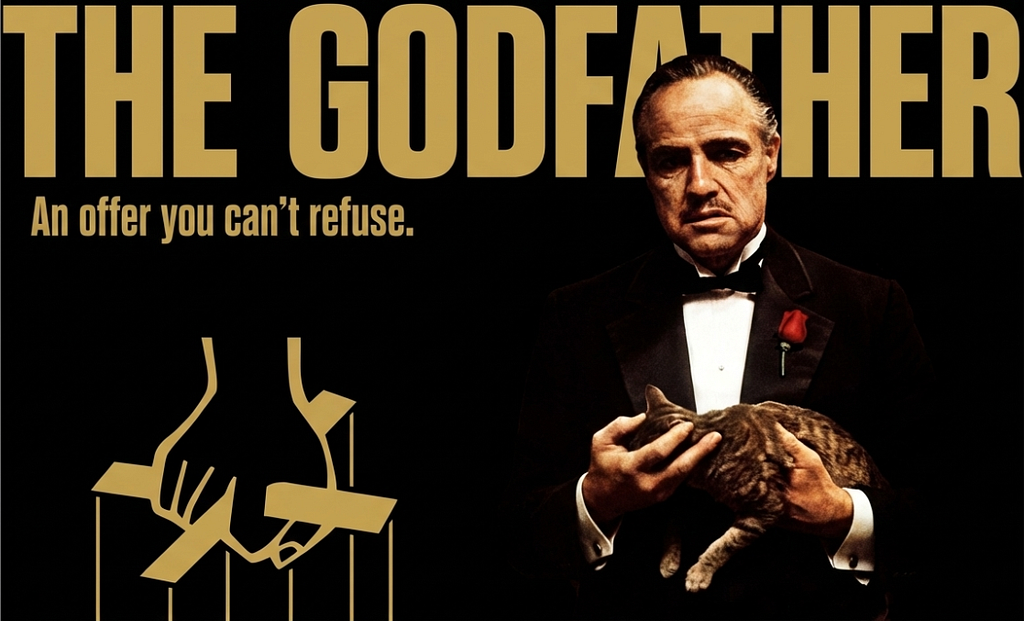
With that, I am ready to show you something that will make you an offer you can’t refuse.
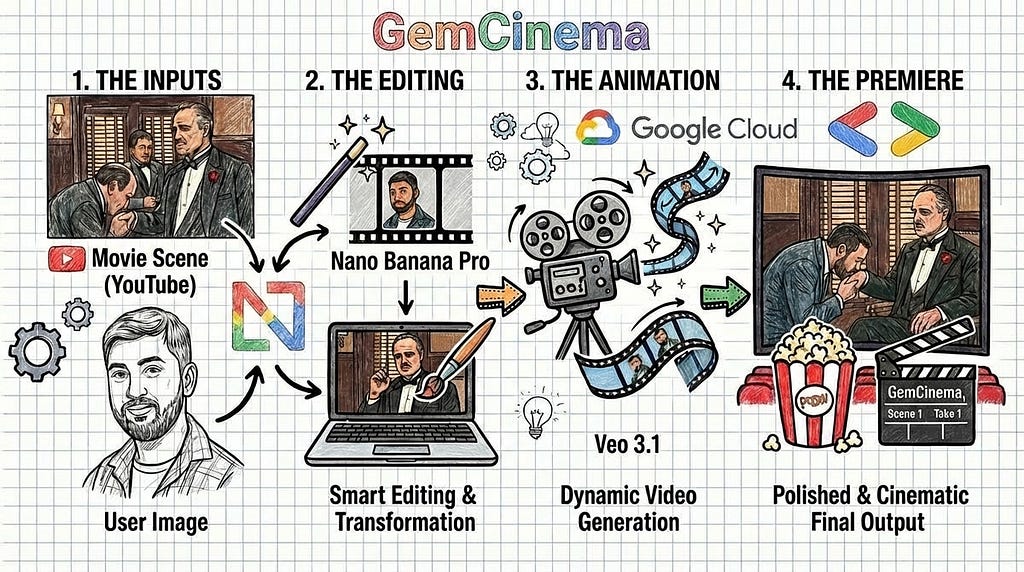
Let’s begin by understanding the architecture of this project.
Prerequisites
It is assumed that you have access to the Gemini Nano Banana Pro and Veo 3.1 models, along with a Gemini API key and a GCP billing account, as using these models comes with some cost. Be prepared to spend a fair amount.
Let’s get started. I have already created a Flask application that you can clone to follow along and understand the step-by-step implementation.
Step 0: Setup
Start by cloning the GitHub repository:
git clone https://github.com/NSTiwari/GemCinema.git
After cloning, you will see the following directory structure:
.
└── GemCinema/
    ├── assets
    ├── templates/
    │   └── index.html
    ├── .env
    ├── app.py
    ├── requirements.txt
    ├── README.md
    └── LICENSE
Next, open the .env file and update the GOOGLE_API_KEY constant with your Gemini API key.
Then, install the required libraries and dependencies, and run the Flask server:
cd GemCinema
pip install -r requirements.txt
flask run
Once the server is running, open your browser and go to http://localhost:5000 .
Now that the setup is done, let’s walk through the app in detail.
Step 1: Add movie source
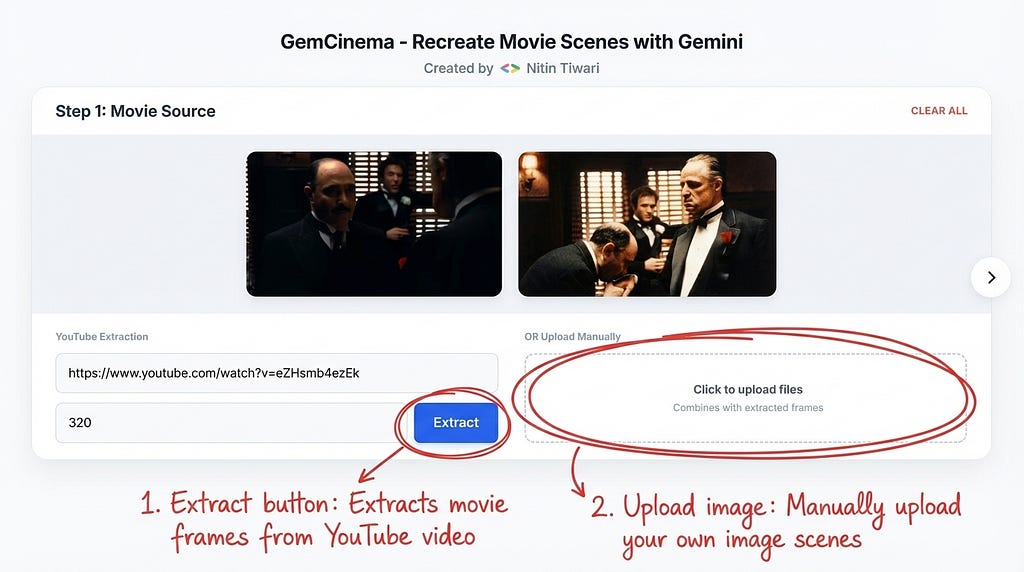
The app allows you to extract frames directly from movies available on YouTube. Simply enter the video URL and the timestamp in seconds (use commas to specify multiple frames). You can also upload your own images from your computer if you prefer.
Step 2: Add a reference character image
Upload the character image you want to appear in the movie scene. This can be your own photo or someone else’s. The model will use this as a reference when editing the scene in the next step. You should also provide a styling prompt to guide the look and feel.
In this example, I am stepping into Amerigo Bonasera’s role in the iconic opening scene of The Godfather.
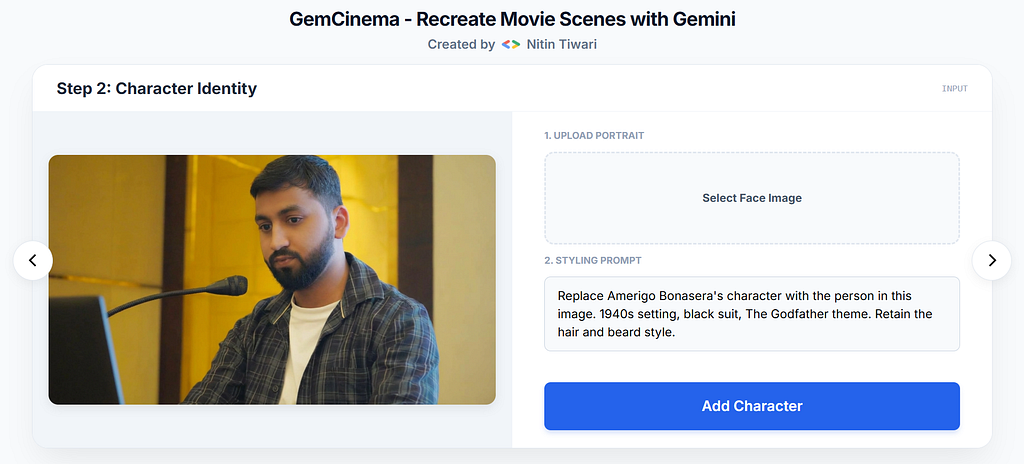
Fun fact: I chose to replace Amerigo Bonasera to pay respect to Don Corleone’s character. I cannot act as Don Corleone himself.
Step 3: Review & Refine
Wow, Nano Banana Pro did an amazing job with the edit. I really liked how it kept the facial features and captured the expressions based on the scene.
If you want to refine the image further, you can do that on top of the edited version. If you want to regenerate it, just go back to the previous step and submit again.
For now, these images look good to me, so I’ll proceed further.

Step 4: Video Script
Next, we provide the script and actions as a prompt to Veo 3.1. In this example, I specified that my character will approach Don Corleone and gently kiss his hand as a sign of respect.
Veo 3.1 also supports audio generation, so you can include dialogue and background music for the scene.

Step 5: The Final Premiere
Finally, the video is ready, and I can see my character on set alongside Don Corleone. It may take a few tries to get the perfect take, but seeing the scene come together is really satisfying.
https://medium.com/media/a38943e8579ae1450356fbdc6cf9e836/href
That’s it for this blog. I hope you enjoyed it and found it interesting. The complete codebase is available in the GitHub repository. I’m excited to see what you create with this project. I really enjoyed working on it, and it has become one of my personal favorite works of 2025.
If you liked the project, please feel free to ⭐ the repository and share it with others.
Bonus:
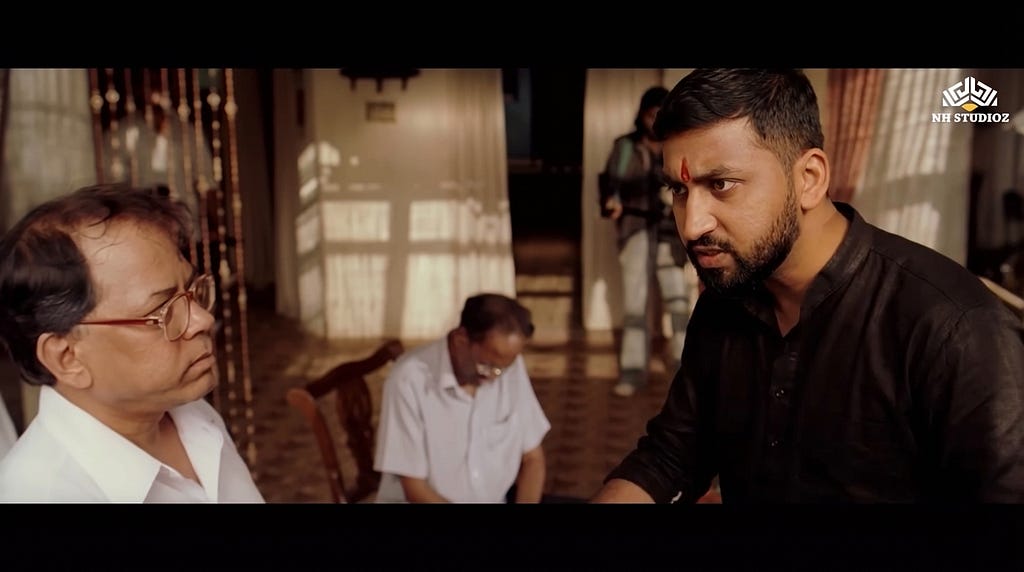
Here’s something I’ve been experimenting with using Bollywood movies. Can you guess the movie from this scene? Hint: It is a remake of The Godfather.
Acknowledgment

This project was developed as part of Google’s AI Developer Programs AI Sprint H2. Sincere thanks to the Google AIDP Team for their generous support in providing GCP credits and Colab units to help facilitate this project.
References & Resources
- Gemini 3 Pro Image (Nano Banana Pro)
- Veo 3.1
- Official documentation of the Gemini API
- GemCinema — GitHub repository

GemCinema: Recreate Movie Scenes with Gemini was originally published in Google Developer Experts on Medium, where people are continuing the conversation by highlighting and responding to this story.